> ## Documentation Index
> Fetch the complete documentation index at: https://docs.briefer.cloud/llms.txt
> Use this file to discover all available pages before exploring further.
# Local quickstart
> Run Briefer's open-source version on your machine.
There are two ways to run Briefer's open-source version on your machine. The first is to use `pip` and the second is to run Briefer's Docker container directly.
## Running through `pip`
The recommended way to run Briefer locally is to install it using `pip` and run it using the `briefer` command.
Please note that Briefer requires [Docker](https://www.docker.com) to run, so
make sure you have it installed before running the commands below.
```bash theme={null}
# Install Briefer
pip install briefer
# Run Briefer and access it on http://localhost:3000
briefer
```
If you run Briefer using `pip`, our initialization scripts will take care of downloading [our docker image](https://hub.docker.com/r/briefercloud/briefer), setting up volumes to store Briefer's data, and starting the application.
## Running with docker
Alternatively, you can also run Briefer using Docker directly:
```bash theme={null}
# Run Briefer using Docker
docker run -d \
-p 3000:3000 \
-v briefer_psql_data:/var/lib/postgresql/data \
-v briefer_jupyter_data:/home/jupyteruser \
-v briefer_briefer_data:/home/briefer \
briefercloud/briefer
```
When running on Windows' PowerShell, it might be necessary to add an extra `` ` `` to the end of each line instead of the `\`, like this:
```bash theme={null}
# Run Briefer using Docker
docker run -d `
-p 3000:3000 `
-v briefer_psql_data:/var/lib/postgresql/data `
-v briefer_jupyter_data:/home/jupyteruser `
-v briefer_briefer_data:/home/briefer `
briefercloud/briefer
```
These volumes are for Briefer to store its data, including its pages, dashboards, schedules, and users. If you want to remove Briefer's data, you can remove these volumes.
## Deploying Briefer for your team
The ideal way to use Briefer is to deploy it somewhere your whole team can access.
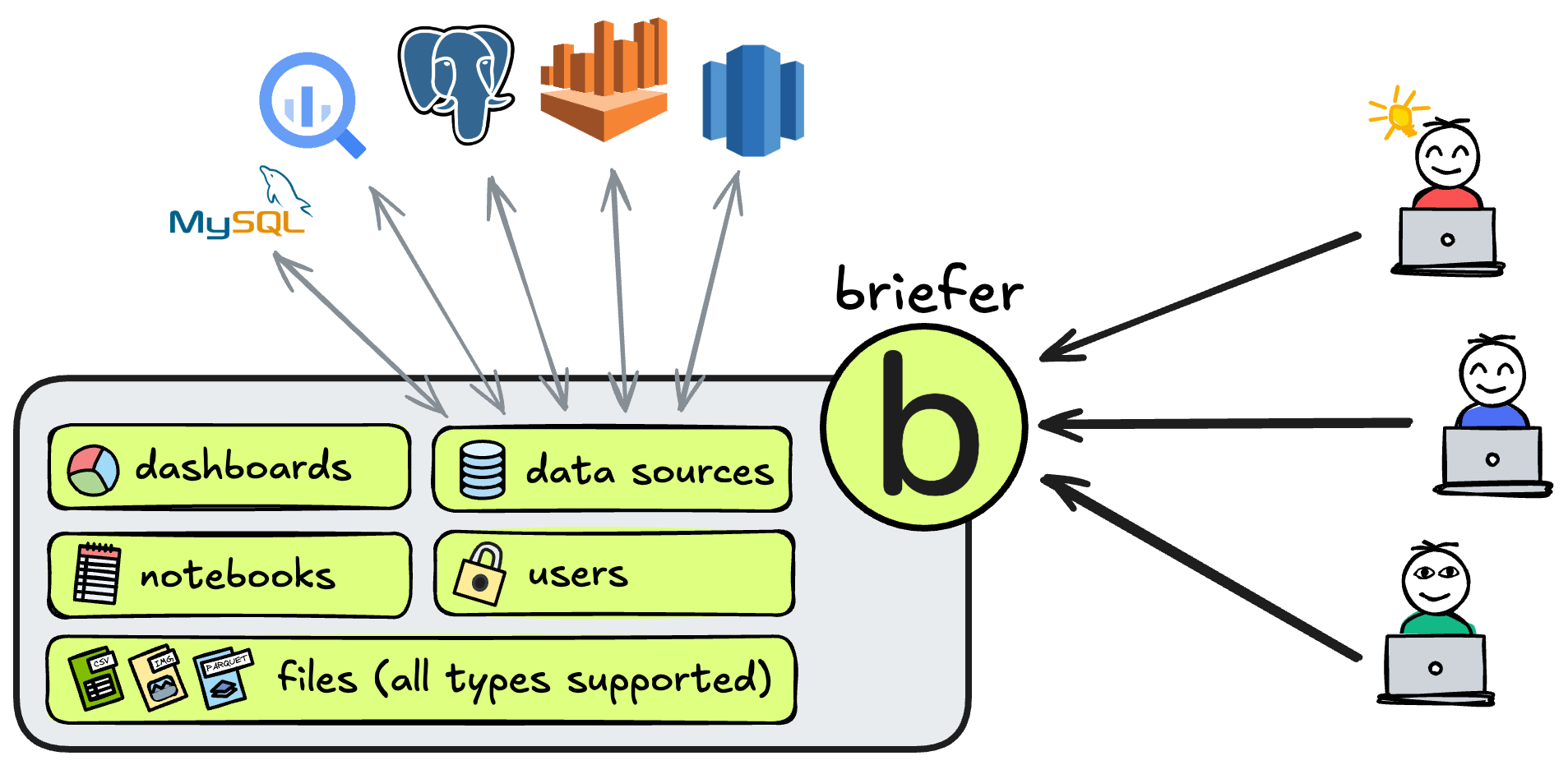
 To learn how to deploy Briefer for collaborating with your team, please see our [deployment guide](/get-started/deploy).