> ## Documentation Index
> Fetch the complete documentation index at: https://docs.briefer.cloud/llms.txt
> Use this file to discover all available pages before exploring further.
# AI assistant
> Use AI to generate code and queries for you.
Briefer comes with an AI assistant that can help you generate code and queries for your pages. It can also automatically fix errors in your code.
To use Briefer's AI assistant in the open-source version, you need to have an OpenAI API key. Please see the [configuring an OpenAI API key](#configuring-an-openai-api-key-open-source-version) section below for more information.
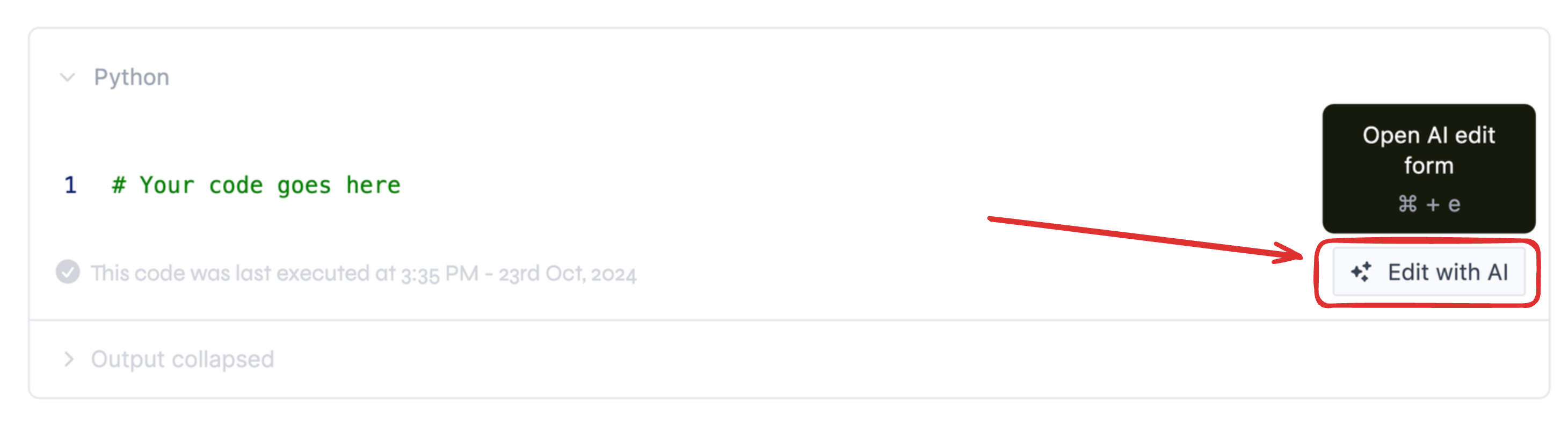
To use the AI assistant, click on the "Edit with AI" button that appears on the bottom right of your Python and SQL blocks' editor. This will open the AI assistant prompt, where you can ask for help with your code.
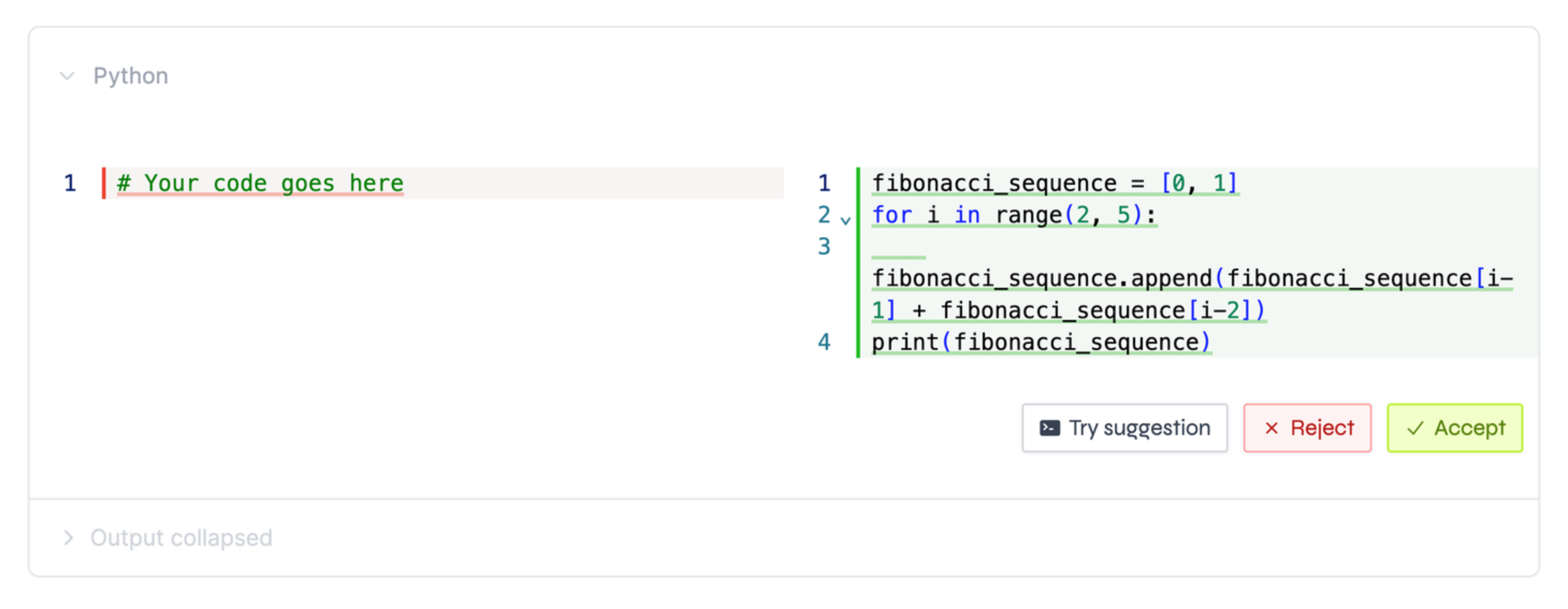
 After prompting the AI assistant, it will show you a diff containing the changes it suggests. You can then choose to apply the changes, test, or discard them.
 ## Fixing errors
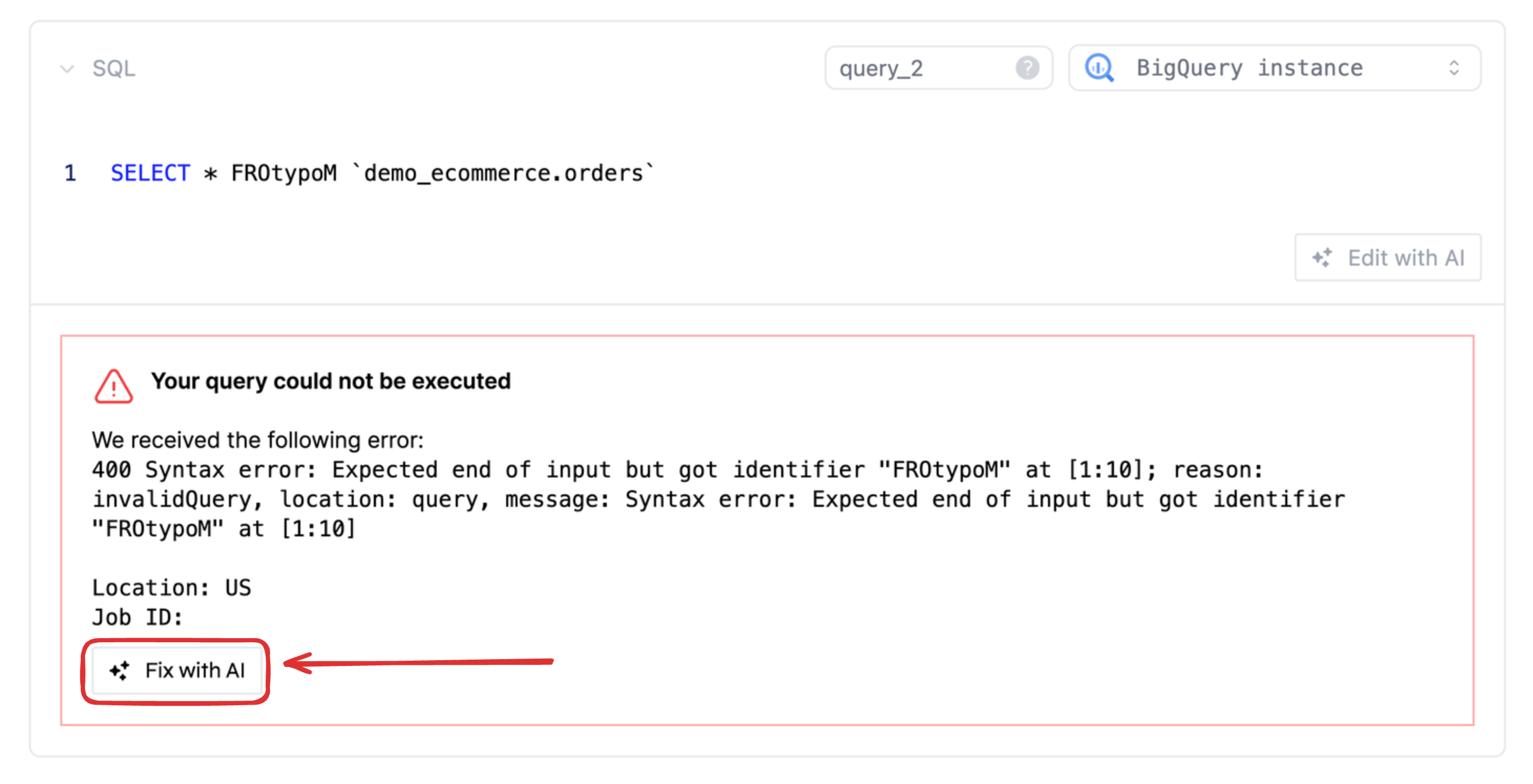
Whenever your Python or SQL code has an error, the AI assistant can help you fix it. To do this, click on the "Fix with AI" button that appears on the output part of the block when an error is detected.
## Fixing errors
Whenever your Python or SQL code has an error, the AI assistant can help you fix it. To do this, click on the "Fix with AI" button that appears on the output part of the block when an error is detected.
 ## Configuring an OpenAI API key (open-source version)
In Briefer's open-source version, you need to have an OpenAI API key to use the AI assistant.
To configure your API key, open the settings panel by clicking on "Settings" in the bottom left corner of the screen. Then, add your API key in the "OpenAI API key" field and save it.
## Configuring an OpenAI API key (open-source version)
In Briefer's open-source version, you need to have an OpenAI API key to use the AI assistant.
To configure your API key, open the settings panel by clicking on "Settings" in the bottom left corner of the screen. Then, add your API key in the "OpenAI API key" field and save it.