> ## Documentation Index
> Fetch the complete documentation index at: https://docs.briefer.cloud/llms.txt
> Use this file to discover all available pages before exploring further.
# Reusable components
> Turn blocks into components you can reuse across pages.
Briefer allows you to turn Python and SQL blocks into reusable components that you can use across different pages.
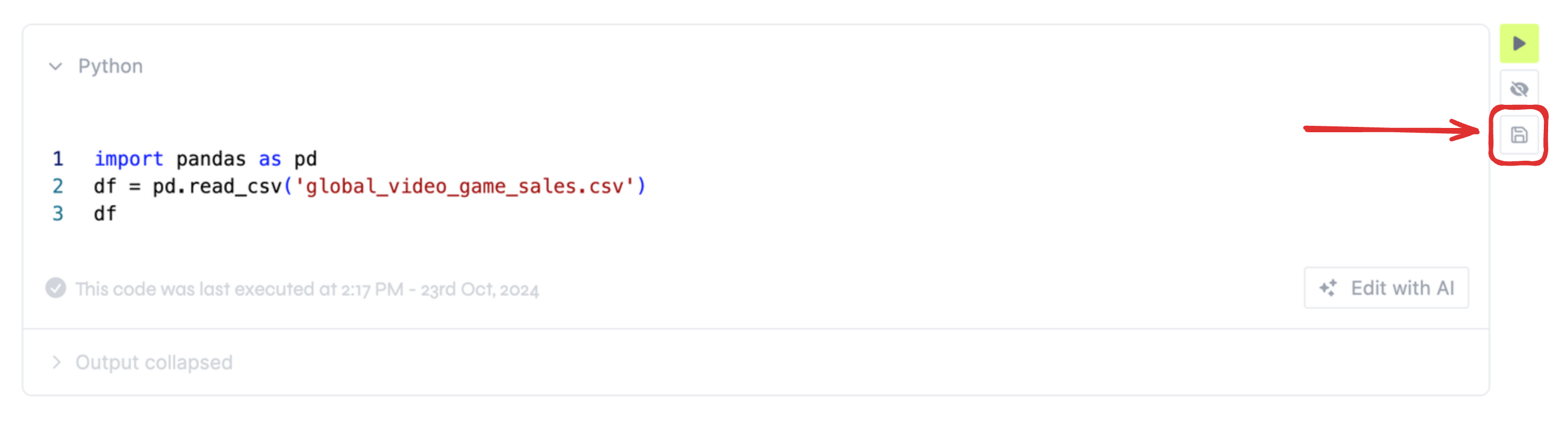
To create a reusable component, hover over a Python or SQL block and click on the "floppy disk" icon that appears on the right side of the block. This will save the block as a component.
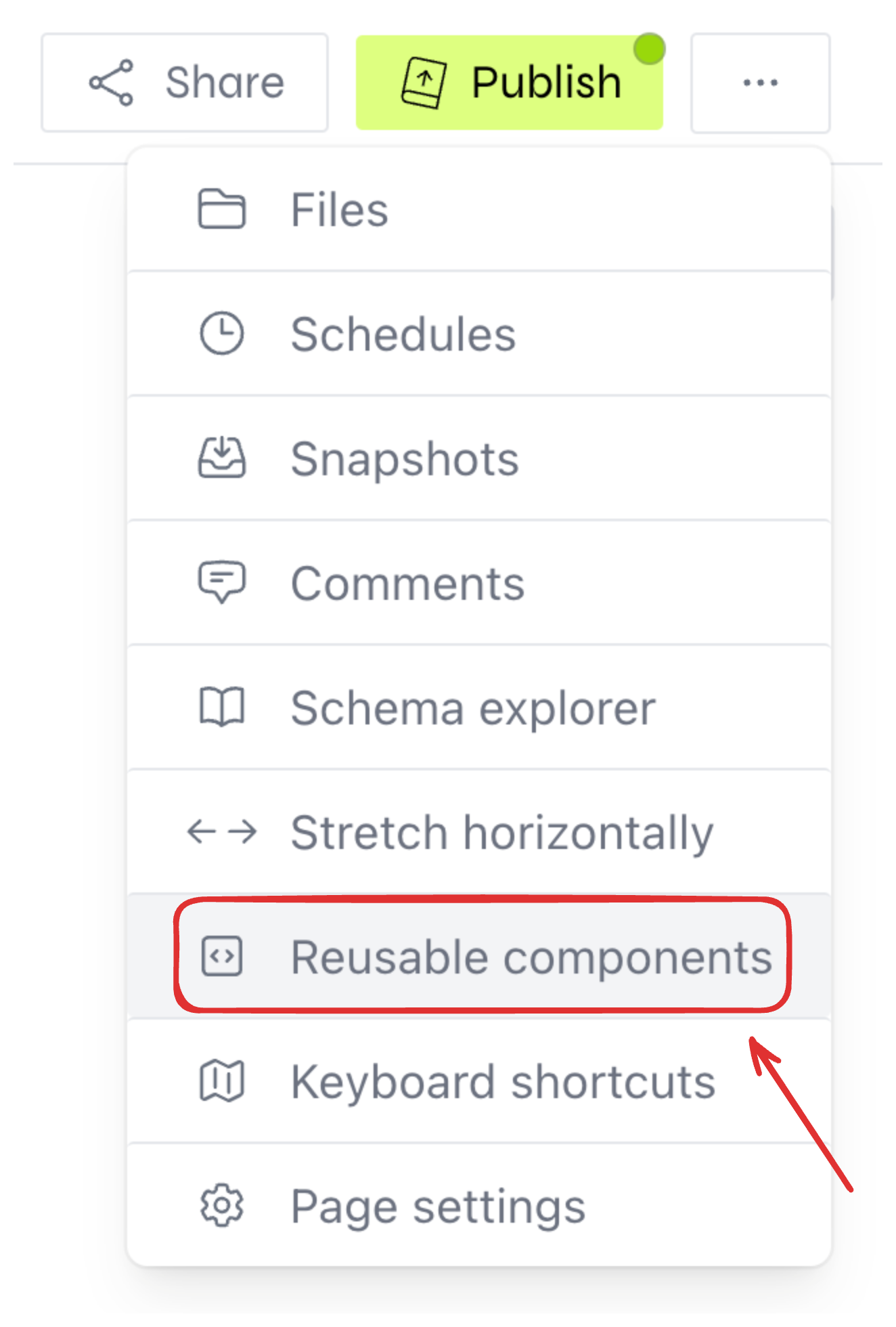
 After saving a block as a component, you can see it in the "Reusable Components" panel. To open the "Reusable Components" panel, click on the "Reusable Components" button within the three dots menu on the top right corner of the editor.
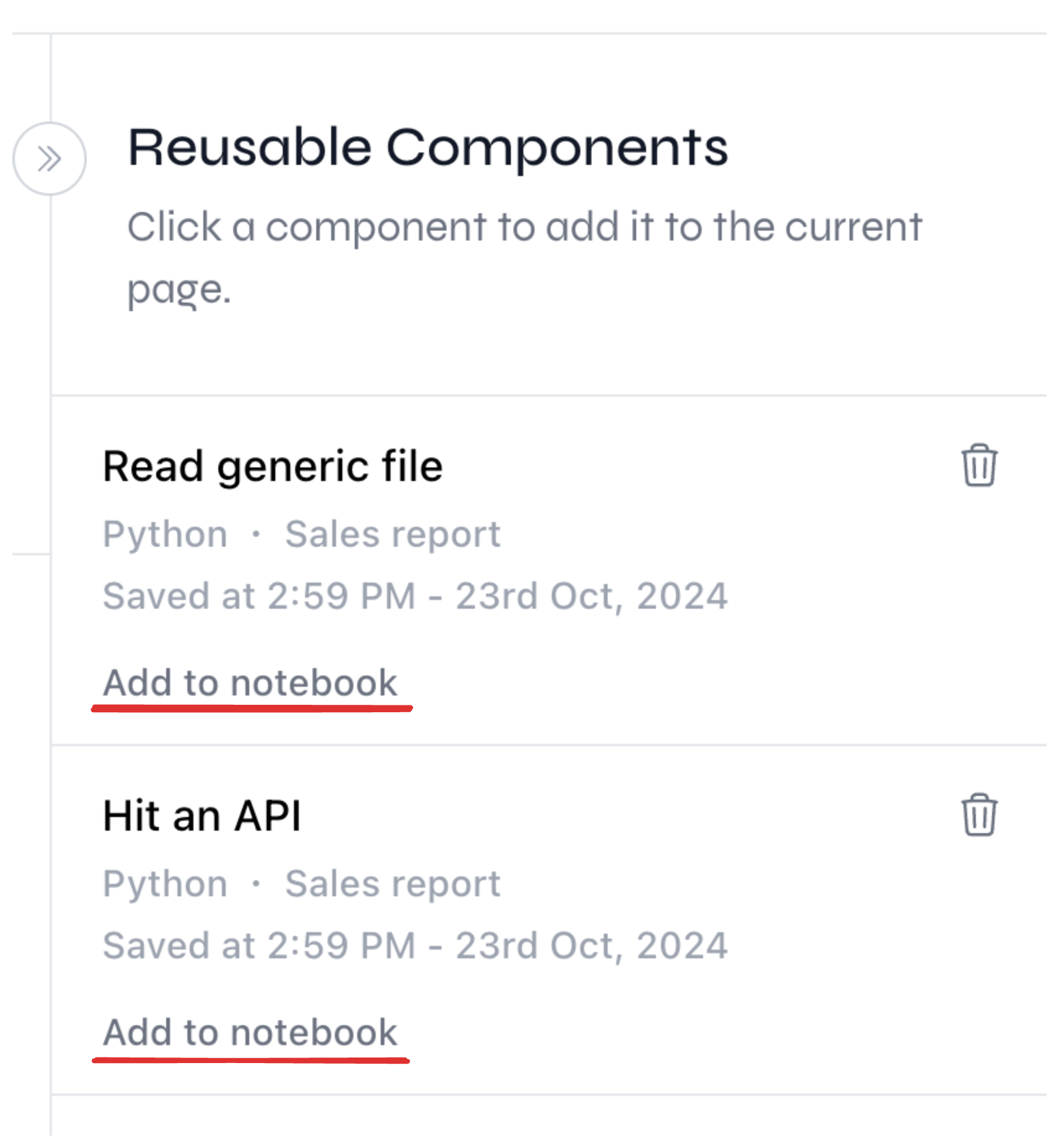
 To use a component in a page, click the "Add to notebook" link at the bottom of the component's row in the "Reusable Components" panel. This will add the component to the page you're currently editing.
 ## Updating existing instances of a component
When you modify the source block of a component, you can update all the instances of that component across your pages.
To do this, click on the "Floppy disk" icon again on the source block of the component.
Then, in the modal that appears, confirm that you want to update all the instances of the component.
## Updating existing instances of a component
When you modify the source block of a component, you can update all the instances of that component across your pages.
To do this, click on the "Floppy disk" icon again on the source block of the component.
Then, in the modal that appears, confirm that you want to update all the instances of the component.